
Top 5 Ways DaVinci Resolve’s AI Super Scale Transforms Your Videos
Tl;DR
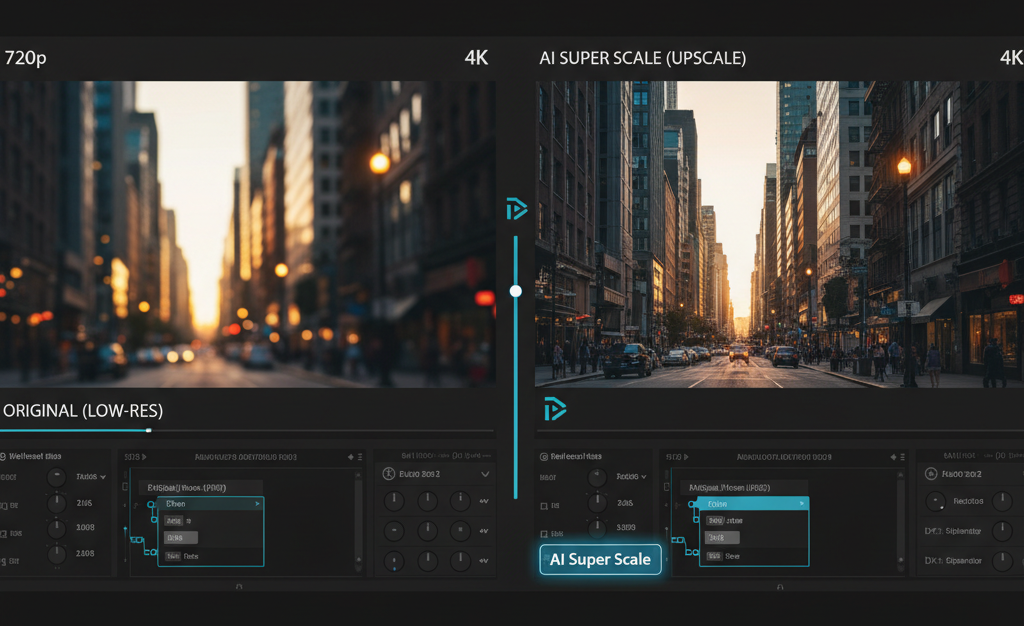
DaVinci Resolve’s AI Super Scale is a powerful tool that uses artificial intelligence to upscale your video footage, making lower-resolution clips look sharp and clear on high-resolution timelines. It’s perfect for restoring old footage, integrating stock video, and making your projects look more professional. This guide explores five key ways this feature can transform your video editing workflow, from simple upscaling to advanced creative enhancements.
Unlocking a New Level of Video Quality
Welcome to the world of high-definition video editing, where quality is everything. Have you ever had a perfect shot ruined by low resolution? Or maybe you found a rare piece of archive footage that just doesn’t fit your 4K project. This is a common problem for video editors, but Blackmagic Design has provided a powerful solution within DaVinci Resolve. This blog will explore the best AI super scale in DaVinci Resolve, a feature designed to intelligently increase the resolution of your video clips.
We will dive into five practical ways you can use this tool to transform your projects. You will learn how to upscale older footage, mix different resolutions seamlessly, and even use Super Scale for creative effects. By the end, you’ll understand why this feature is a game-changer for editors and how to get the most out of it.
1. Breathing New Life into Old Footage
One of the most valuable applications of AI Super Scale is archival restoration. Many historical events and family moments were captured on standard-definition tapes or early digital cameras. When you try to use this footage in a modern 1080p or 4K project, it often looks blurry, pixelated, and out of place.
DaVinci Resolve’s Super Scale analyzes the original clip and uses a sophisticated AI algorithm to generate new pixels that are contextually aware of the surrounding image. Unlike traditional scaling methods that simply stretch the image, Super Scale reconstructs it. This process effectively sharpens details, smooths jagged edges, and reduces artifacts.
For example, imagine you are editing a documentary that includes interviews shot in the early 2000s. By applying Super Scale, you can upscale that 480p footage to 1080p, making it blend much more smoothly with your newly shot 4K interviews. The result is a more cohesive and professional-looking final product. This makes it an essential tool for anyone working with mixed-media projects or historical content.
2. Seamlessly Integrating Stock and Drone Footage
Stock footage and drone shots are staples in modern video production. However, you might find the perfect clip on a stock footage site, only to realize it’s only available in 1080p while your project is 4K. Similarly, some older or more affordable drones may only shoot in 1080p or 2.7K.
This is where AI Super Scale becomes incredibly useful. You can take that 1080p stock clip or drone shot and upscale it to 4K directly within your timeline. The process is straightforward: simply select the clip, navigate to the Inspector panel, and under “Clip Attributes,” you’ll find the Super Scale options. You can choose 2x, 3x, or 4x scaling, along with adjustments for sharpness and noise reduction.
By using Super Scale, you ensure that every clip in your project maintains a high level of quality, regardless of its original resolution. This allows for greater creative freedom, as you are no longer limited by the technical specifications of every single piece of media you want to use.

3. The Best AI Super Scale in DaVinci Resolve for Cropping and Reframing
Creative flexibility is key in post-production. Sometimes, you need to reframe a shot by punching in or cropping it. If you have a 4K clip on a 4K timeline, zooming in too far can cause a noticeable loss in quality. The image becomes soft and pixelated, which can be distracting for the viewer.
AI Super Scale offers a brilliant solution to this problem. Before you zoom in on your 4K clip, you can first use Super Scale to upscale it to 8K. Even though your timeline is 4K, the upscaled source clip now has significantly more resolution to work with. Consequently, when you zoom in to reframe your shot, you are essentially cropping an 8K image, which results in a much sharper and more detailed final image than if you had cropped the original 4K clip.
This technique is invaluable for interviews where you want to create a “punch-in” for emphasis, or for wildlife videography where you couldn’t get close enough to the subject. It gives you the power to recompose your shots in post-production without sacrificing image integrity.
4. Enhancing Motion Graphics and Textures
AI Super Scale isn’t just for camera footage. It can also be a powerful tool for motion graphics artists and animators. Often, you might be working with lower-resolution graphical assets, logos, or even textures that you need to use in a high-resolution composition. For instance, if a client provides a 720p logo animation for a 4K video, it will look soft and unprofessional.
By applying Super Scale to the graphic element, you can increase its resolution and sharpness, making it look crisp and clean in your final render. This also applies if you are looking for the best AI to create textures. While Super Scale doesn’t generate textures from scratch, it can enhance existing ones. If you have a standard-definition texture map, you can upscale it to create a more detailed material for your 3D models or motion graphics backgrounds.
Furthermore, this tool is excellent for cleaning up VFX shots. If you have a composite that includes lower-resolution elements, using Super Scale on those specific layers can help them blend more realistically with the higher-resolution background plates.
5. Optimizing Vertical Video for Horizontal Timelines
With the rise of social media platforms like TikTok and Instagram Reels, vertical video is more common than ever. Editors are frequently asked to incorporate vertical footage (typically 1080×1920) into standard horizontal projects (1920×1080 or 3840×2160). When you place a vertical clip into a horizontal timeline, it leaves large black bars on the sides.
A common technique to fill the space is to place a scaled-up, blurred version of the same clip in the background. However, scaling up the vertical clip can make it look very soft. By using AI Super Scale on the background layer, you can create a much sharper and more visually pleasing backdrop.
First, place your vertical clip on the timeline. Then, duplicate it onto a video track below. On the bottom clip, use Super Scale to increase its resolution. After that, scale it up to fill the entire frame and apply a blur effect. The result is a background that looks intentionally designed rather than like a low-quality workaround. This small touch significantly elevates the production value of your edit.

Beyond Scaling: A Smarter Workflow
DaVinci Resolve’s AI Super Scale is more than just a technical feature; it’s a creative problem-solver. It empowers you to work with a wider range of media, fix common quality issues, and push your creative boundaries without being limited by resolution. Whether you’re restoring old memories, mixing different camera formats, or reframing a shot for dramatic impact, this AI-powered tool provides a simple yet powerful solution. By mastering the best AI super scale in DaVinci Resolve, you add an indispensable skill to your editing toolkit.
DaVinci Resolve’s AI Super Scale is more than just a technical feature; it’s a creative problem-solver. It empowers you to work with a wider range of media, fix common quality issues, and push your creative boundaries without being limited by resolution. For a detailed comparison and in-depth review, check out the Oreate AI Blog on the best AI super scale in DaVinci Resolve. Whether you’re restoring old memories, mixing different camera formats, or reframing a shot for dramatic impact, this AI-powered tool provides a simple yet powerful solution. By mastering the best AI super scale in DaVinci Resolve, you add an indispensable skill to your editing toolkit.
If you are interested in exploring more editing techniques and digital creative tools, you can find more resources and guides at wajahatamin.com.
Key Takeaways
- Upscale Low-Res Footage: Super Scale intelligently increases the resolution of older or lower-quality video clips, making them usable in modern HD and 4K projects.
- Mix Resolutions Easily: Seamlessly integrate 1080p stock footage, drone shots, or other media into a 4K timeline without losing quality.
- Reframe Without Quality Loss: Upscale your clips before cropping or zooming in to maintain sharpness and detail in your reframed shots.
- Enhance Graphics: Improve the quality of lower-resolution logos, motion graphics, and textures for a crisp look in high-resolution compositions.
- Optimize Vertical Video: Create clean, high-quality backgrounds when incorporating vertical video into a horizontal project.